1. Download evoftp
One file per platform, no installer, nothing else to set up. Grab the one for your computer:
Not sure which Mac you have? Apple menu → About This Mac. "Chip: Apple M…" = Apple Silicon; "Processor: Intel…" = Intel. All builds: browse the folder.
2a. Windows
portable — no install- Download
evoftp-windows.exeand move it somewhere permanent, e.g.C:\Tools\evoftp.exeor your Documents folder. (It runs from wherever it is — if you leave it in Downloads and later clear that folder, your.evoftpshortcuts will stop opening.) - Double‑click it. Windows SmartScreen will show "Windows protected your PC" because the app is new and not yet code‑signed. Click More info → Run anyway. This only happens the first time.
- evoftp opens. On first launch it also registers the
.evoftpfile type andevoftp://links for your user account, so the config file from your client area opens straight into the app.
Next: connect to your seedbox.
2b. macOS
macOS 11 Big Sur and newer- Download
evoftp-mac.zip(Apple Silicon) orevoftp-mac-intel.zip(Intel). Safari usually unzips it for you; otherwise double‑click the zip. - Drag evoftp.app into your Applications folder.
- First launch — because the app is not notarised by Apple yet, macOS will refuse a plain double‑click. Use one of these:
- macOS 14 Sonoma and earlier: right‑click (or Control‑click) evoftp.app → Open → Open in the dialog.
- macOS 15 Sequoia and newer: double‑click once (it will say it can't be opened), then go to System Settings → Privacy & Security, scroll down to the message about evoftp and click Open Anyway. Confirm with your password or Touch ID.
It says "evoftp is damaged and can't be opened. You should move it to the Bin."
That message is macOS's quarantine flag on an unsigned download, not actual damage. Open Terminal (Applications → Utilities) and run:
xattr -dr com.apple.quarantine /Applications/evoftp.appthen open the app again with the right‑click → Open method above.
Next: connect to your seedbox.
2c. Linux
AppImage — any distribution- Download
evoftp-linux.AppImage. - Make it executable, then run it:
Most file managers also let you right‑click → Properties → "Allow executing as a program", then double‑click.chmod +x evoftp-linux.AppImage ./evoftp-linux.AppImage - Optional — to open
.evoftpfiles by double‑clicking and get a menu entry, install AppImageLauncher or run the app once and choose it as the default program for.evoftpfiles in your file manager.
"dlopen(): error loading libfuse.so.2" or the file just doesn't start
AppImages need FUSE 2. Install it (sudo apt install libfuse2 — on Ubuntu 24.04 the package is libfuse2t64; Fedora: sudo dnf install fuse fuse-libs), or skip FUSE entirely with:
./evoftp-linux.AppImage --appimage-extract-and-runNext: connect to your seedbox.
3. Connect to your seedbox
Two ways. The first one takes one click.
Option A — the .evoftp file from your client area (recommended)
- Log in to your client area and open your seedbox service page.
- In the Desktop app row, click Connection file. You get a small file called
yourname.evoftp— it contains the server address, your username and password. - Double‑click that file. evoftp opens (or comes to the front), saves the server in the sidebar and connects. Done.
Option B — type the details in
Click + Add server… in the sidebar (or the Connect… button on the right when nothing is connected). Fill in the same details you use for SFTP — they're on your service page in the client area. Leave Protocol on SFTP — over SSH (the default, port 22) for your seedbox; the dropdown also offers FTPS and plain FTP for other servers such as a NAS or a web host, and fills in their usual port (21, or 990 for implicit FTPS) unless you typed your own. Plain FTP is unencrypted, and evoftp warns you when you pick it.
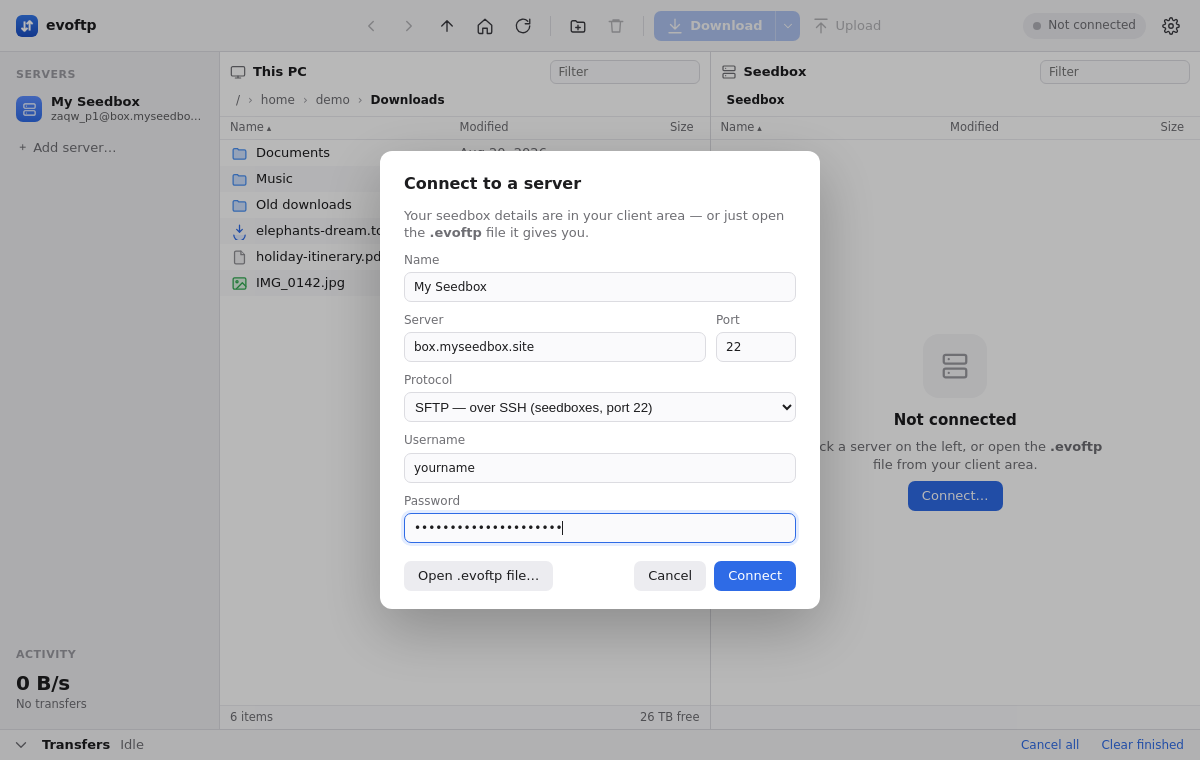
Press Connect. The server is saved for next time; on Windows and Linux the password is stored encrypted with your OS login.
4. Downloading from your seedbox
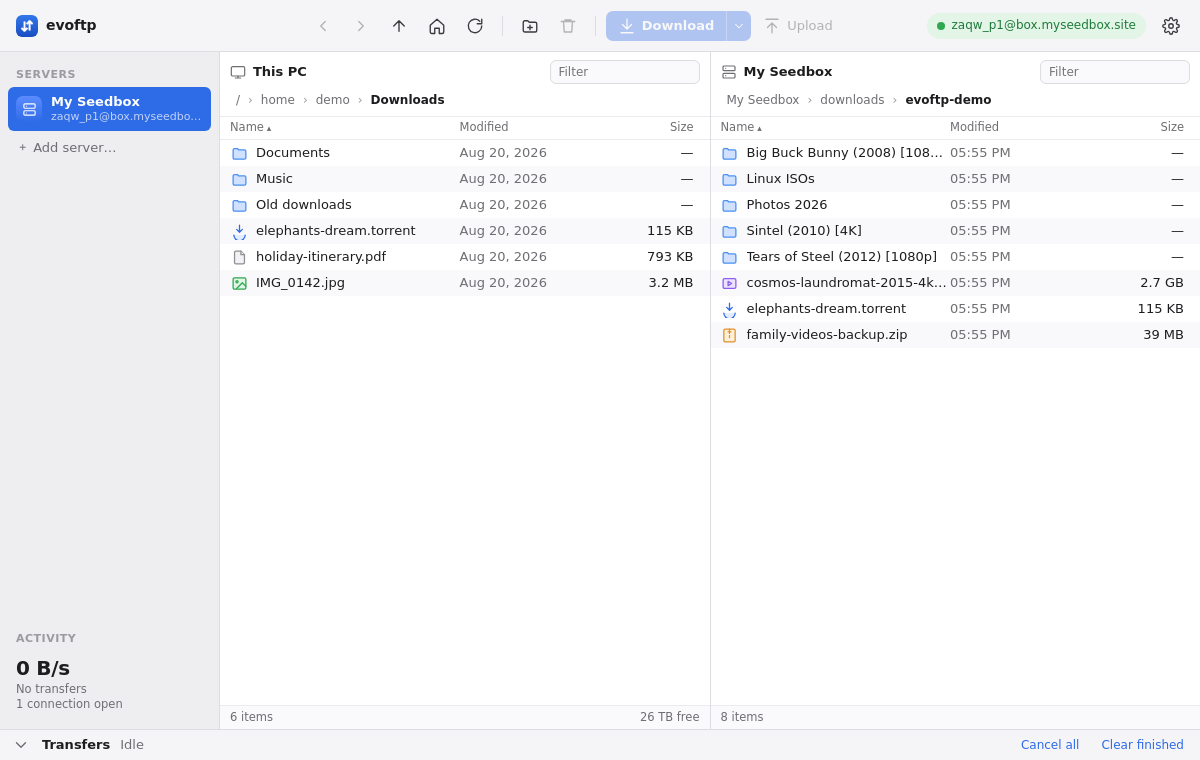
Your computer is on the left, your seedbox on the right. Moving files is one click.
The basic download
- On the left, go to the folder on your PC where you want the files (the Download folder in Settings is where the left pane starts).
- On the right, click the files or folders you want. Ctrl‑click (⌘‑click on Mac) to pick several; Shift‑click for a range. Whole folders are fine — every file inside is queued.
- Click the big blue Download button (or press Ctrl+D / ⌘+D, or just drag the selection into the left pane, or double‑click a single file).
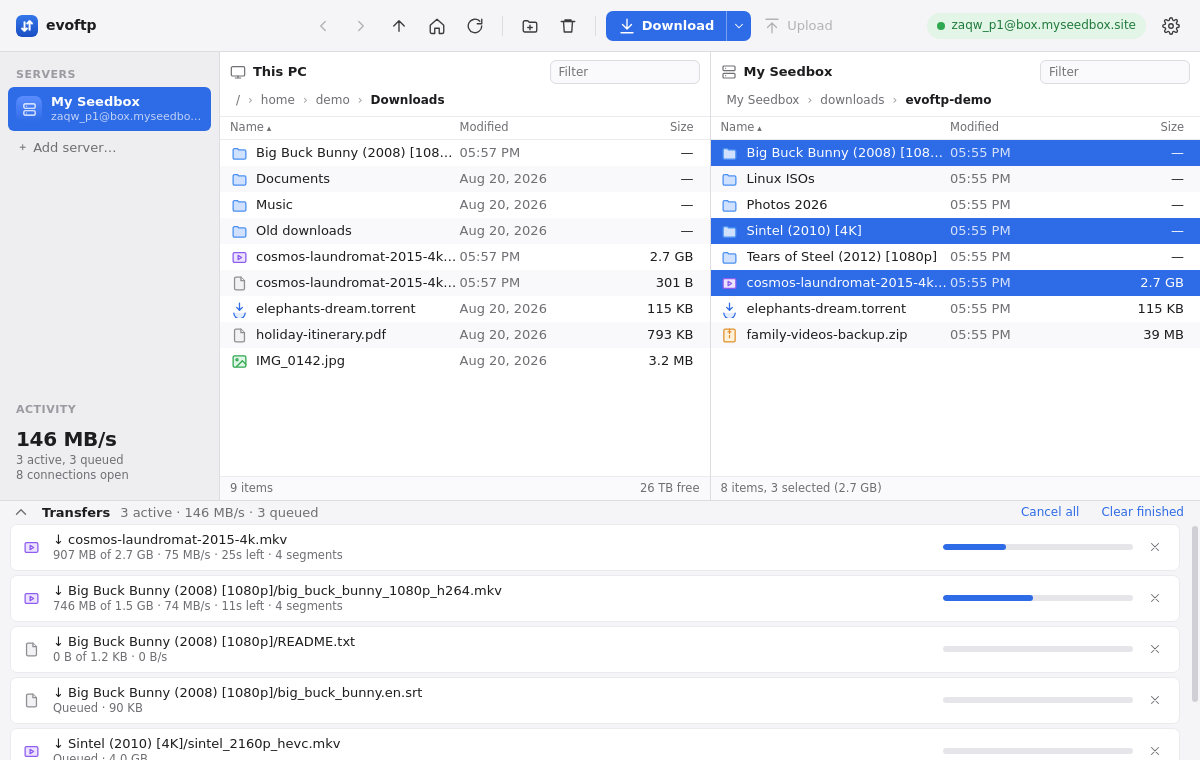
Why is it so fast? Segments.
A normal SFTP client pulls one file through one connection, and one connection to a far‑away server is usually much slower than your line. evoftp splits every large file into pieces and pulls them over several SSH connections at the same time, writing each straight into place — the same technique as lftp pget, built in. Small files get one connection; folders transfer several files at once. The total number of connections is capped so the server never sees a flood.
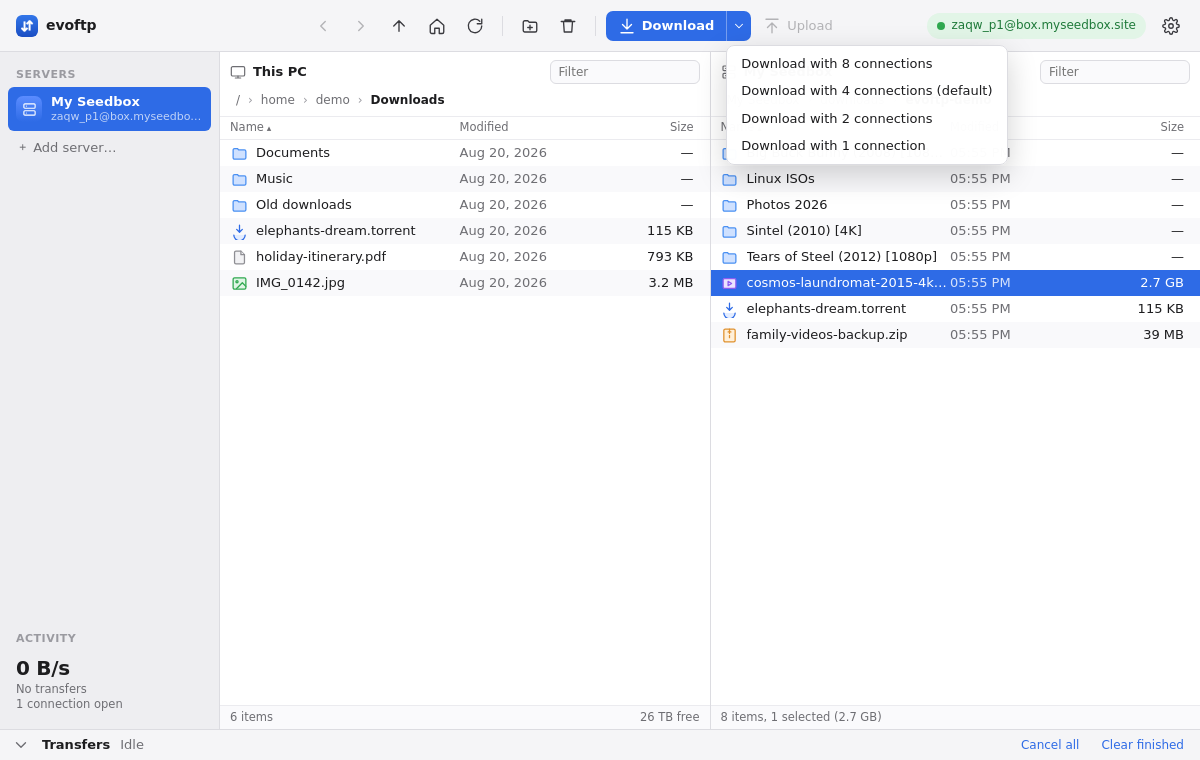
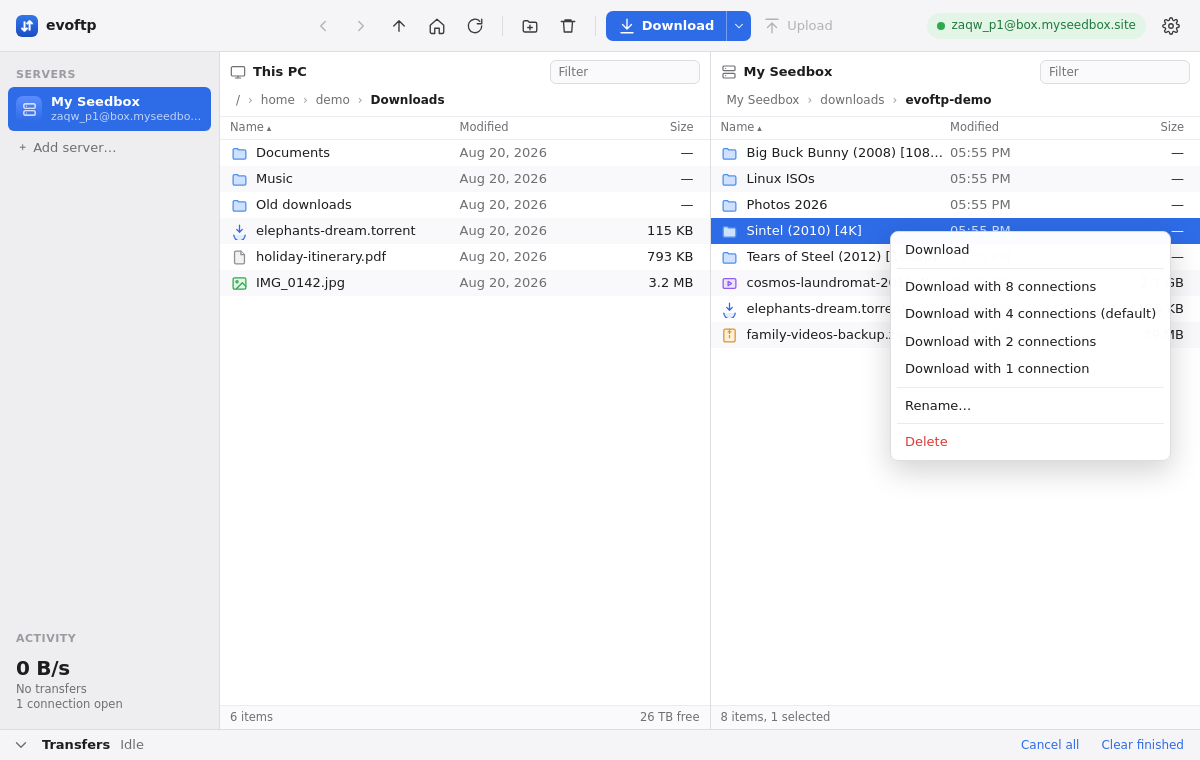
Choosing how many connections a download uses
The default (4 per file) is right for most people. For a single huge file over a slow or distant link, use more; on a shared connection, use fewer. Click the little ▾ next to Download, or right‑click the file:
Cancel, resume, retry
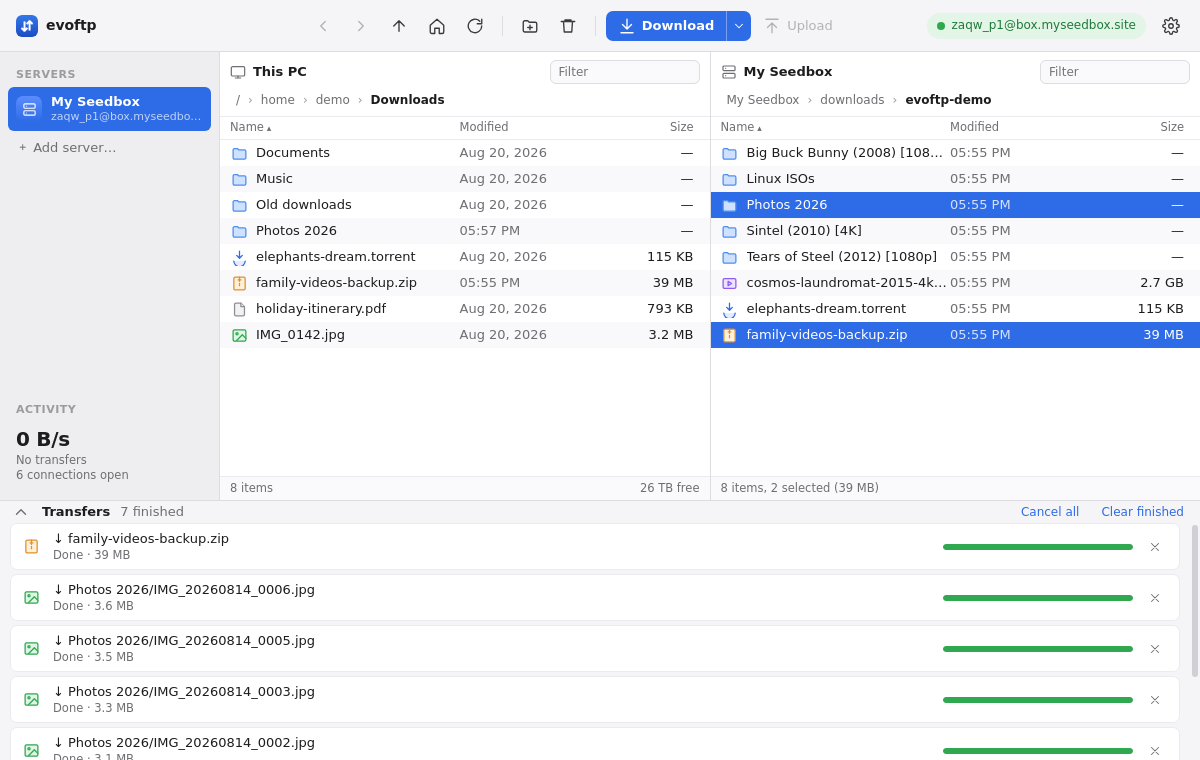
- Cancel one transfer with the × on its row, or everything with Cancel all. Cancelling is instant.
- Resume: a cancelled or interrupted download leaves a tiny
filename.evoftp-partnext to the partial file. Download the same file into the same folder again and it continues from where it stopped — nothing is re‑downloaded. The sidecar is removed when the file completes. - Retry (the circular arrow) appears on a row that failed or was cancelled; Clear finished tidies the list.
5. Uploading to your seedbox
Same thing in reverse: select files on the left, then click Upload (Ctrl+U / ⌘+U) or drag them into the right pane. You can also drop files straight from your desktop or file manager onto the seedbox pane.
.torrent file into your seedbox's downloads/watch folder — rTorrent picks it up within seconds and starts it, no need to open ruTorrent.Other things you can do on the seedbox side: New folder (toolbar), Rename… and Delete (right‑click). Delete asks first and cannot be undone.
6. Settings & transfer profiles
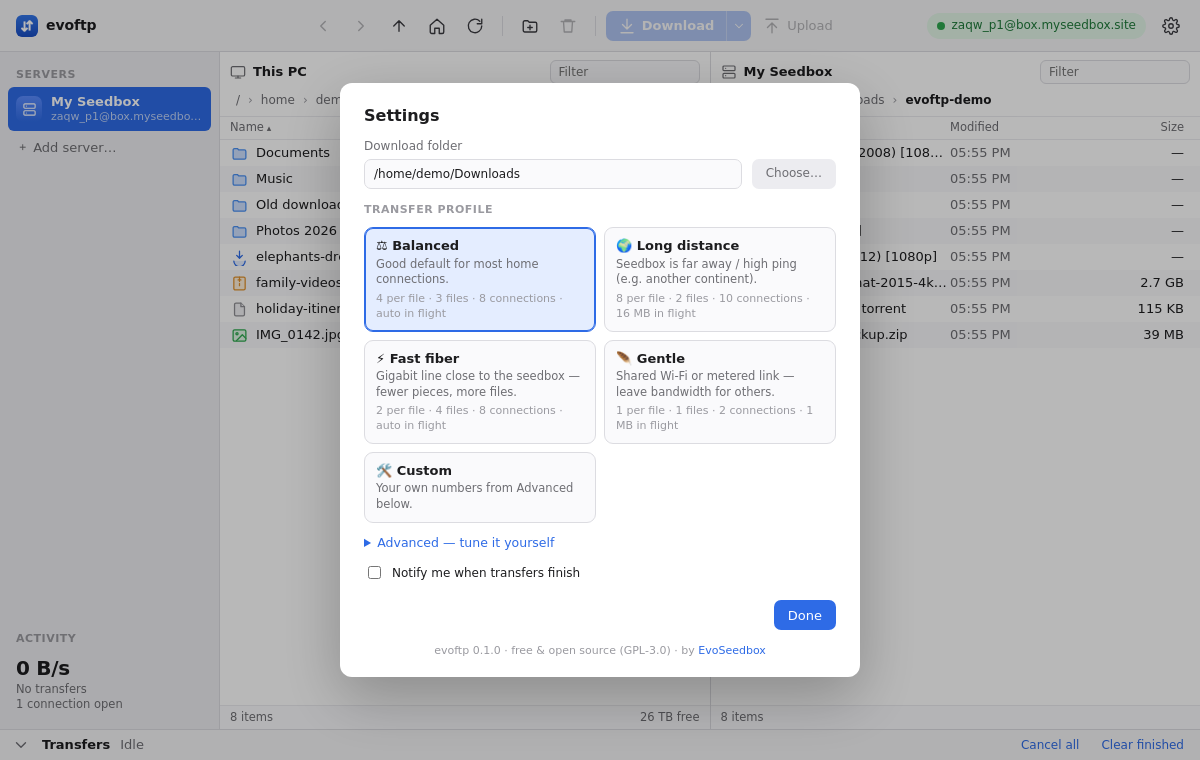
Click the gear (top right). Set your Download folder, then pick the profile that matches your connection — this is the one setting worth a moment's thought:
| Profile | Use it when… | What it does |
|---|---|---|
| Balanced (default) | Normal home broadband in the same region as the seedbox. | 4 segments · 3 files at once · 8 connections |
| Long distance | The seedbox is on another continent, ping over ~100 ms, or single downloads feel slow no matter what. | 8 segments · 2 files · 10 connections · 16 MB in flight per connection to fill the long pipe |
| Fast fiber | Gigabit line close to the seedbox — a single connection is already fast. | 2 segments · 4 files · 8 connections — fewer pieces, more files at once |
| Gentle | Shared Wi‑Fi, a metered link, or you want to keep browsing comfortably while it runs. | 1 segment · 1 file · 2 connections |
| Custom | You know what you want. | Open Advanced and set segments (1–8), files at once (1–5), total connections (2–12) and the in‑flight window yourself. |
Rule of thumb: if the sidebar speed is far below what your line can do, try Long distance. If it's already at your line's limit, more connections won't help.
7. Keyboard shortcuts
| Keys | Action |
|---|---|
| Ctrl/⌘ + D | Download the selected seedbox files |
| Ctrl/⌘ + U | Upload the selected local files |
| Ctrl/⌘ + R | Refresh the focused pane |
| ↑ ↓ | Move the selection |
| Enter | Open a folder / download a file / open a local file |
| Backspace | Go up one folder |
| Esc | Close a dialog |
8. Troubleshooting
"Login failed — check the username and password."
The password is your seedbox (SFTP/ruTorrent) password, which may differ from your client‑area password. Copy it from your service page, or re‑download the .evoftp file — it always has the current one. If the box shows the old details, right‑click the server in the sidebar → Edit….
"Connection timed out" or "ECONNREFUSED"
Check the hostname is exactly the one on your service page and the port is 22. If a firewall at work or school blocks SSH, try from another network or a phone hotspot. Several wrong passwords in a row temporarily block your IP address on the server — wait a while and try again, or contact support and we'll clear it.
Downloads are slow
Open Settings and choose Long distance, then test with one large file. Watch the sidebar speed: if it climbs, keep that profile. If a single file is still slow but several files together are fast, your ISP is limiting per‑connection speed — more segments is exactly the fix. Also make sure nothing else on your PC (a VPN, a torrent client, cloud backup) is using the line.
A download stopped at 99% / a file is smaller than it should be
Download it again into the same folder — evoftp resumes and finishes it. If it fails repeatedly, the file on the seedbox may still be growing (a torrent still downloading); wait until it's complete in ruTorrent.
Double‑clicking the .evoftp file doesn't open evoftp
Windows: run evoftp-windows.exe once from its permanent location — that registers the file type. If you moved the exe, run it once from the new place. macOS: right‑click the file → Open With → evoftp (tick "Always Open With"). Linux: in your file manager, right‑click → Open With → choose the AppImage. Or start evoftp and use Open .evoftp file… in the Connect dialog.
9. FAQ
Is evoftp free? Can I use it with a different seedbox provider?
Yes and yes. It's free, open source (GPL‑3.0) and talks SFTP over SSH — and, since 0.2.0, FTPS and plain FTP — so it works with any server that gives you SFTP or FTP access: another seedbox, a NAS, a web host. The one‑click .evoftp file is an EvoSeedbox convenience.
Is this FTP or SFTP?
SFTP by default — your seedbox connection goes through SSH on port 22, encrypted, and that's the one to use. Since 0.2.0 the Protocol dropdown in the Connect dialog also offers FTPS (FTP over TLS, port 21, or implicit on 990) and plain FTP for other servers. FTPS certificates are pinned on first connection, like an SSH host key: if a server's certificate changes later, evoftp refuses to connect until you edit the server and clear the pinned certificate. Plain FTP sends your password and files unencrypted — evoftp warns you, so prefer FTPS where it's offered. Segmented downloads and resume work the same on all of them; uploads are single‑stream everywhere.
Where is my password stored?
In the app's own settings folder. On Windows and Linux it's encrypted with your OS login (Windows DPAPI / your keyring). On macOS the unsigned build stores it in the app's folder without the Keychain — a Keychain‑backed build will follow once the app is signed. If that matters to you, don't save the password: leave the field empty and type it when connecting.
Can I run several downloads to different folders?
Yes — each download goes to whatever folder the left pane shows at the moment you click Download. Change folder on the left, select more on the right, click Download again.
Does it work over a VPN?
Yes, but a VPN often adds latency and caps per‑connection speed — choose Long distance, or disconnect the VPN while transferring if you can.
How do I update it?
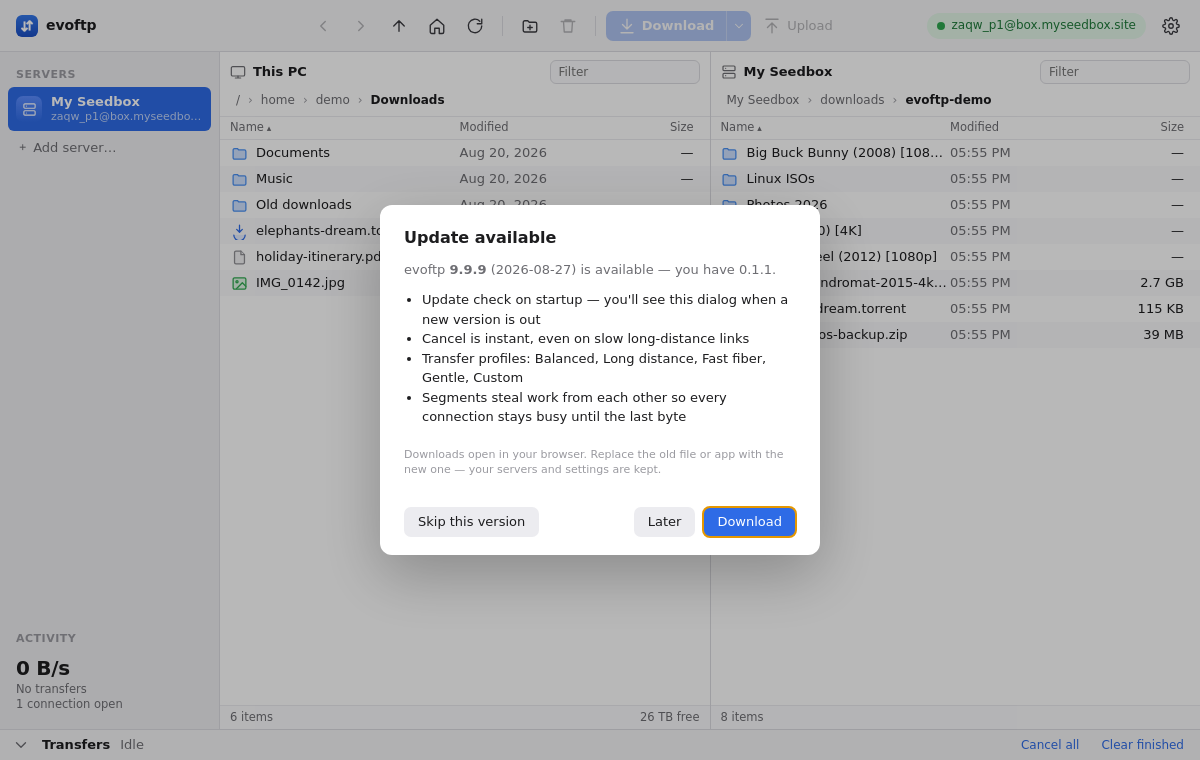
evoftp checks for a new version each time it starts (it fetches one small file from our download folder — nothing about you is sent). When there is one you get this dialog; Download opens the new build in your browser — replace the old file or app with it, your servers and settings are kept. Later asks again next start; Skip this version stays quiet until the one after. You can always check by hand: gear icon → Check for updates.
How do I remove it?
Delete the exe / app / AppImage. Saved servers and settings live in %APPDATA%\evoftp (Windows), ~/Library/Application Support/evoftp (macOS) or ~/.config/evoftp (Linux) — delete that folder too if you want a clean slate.